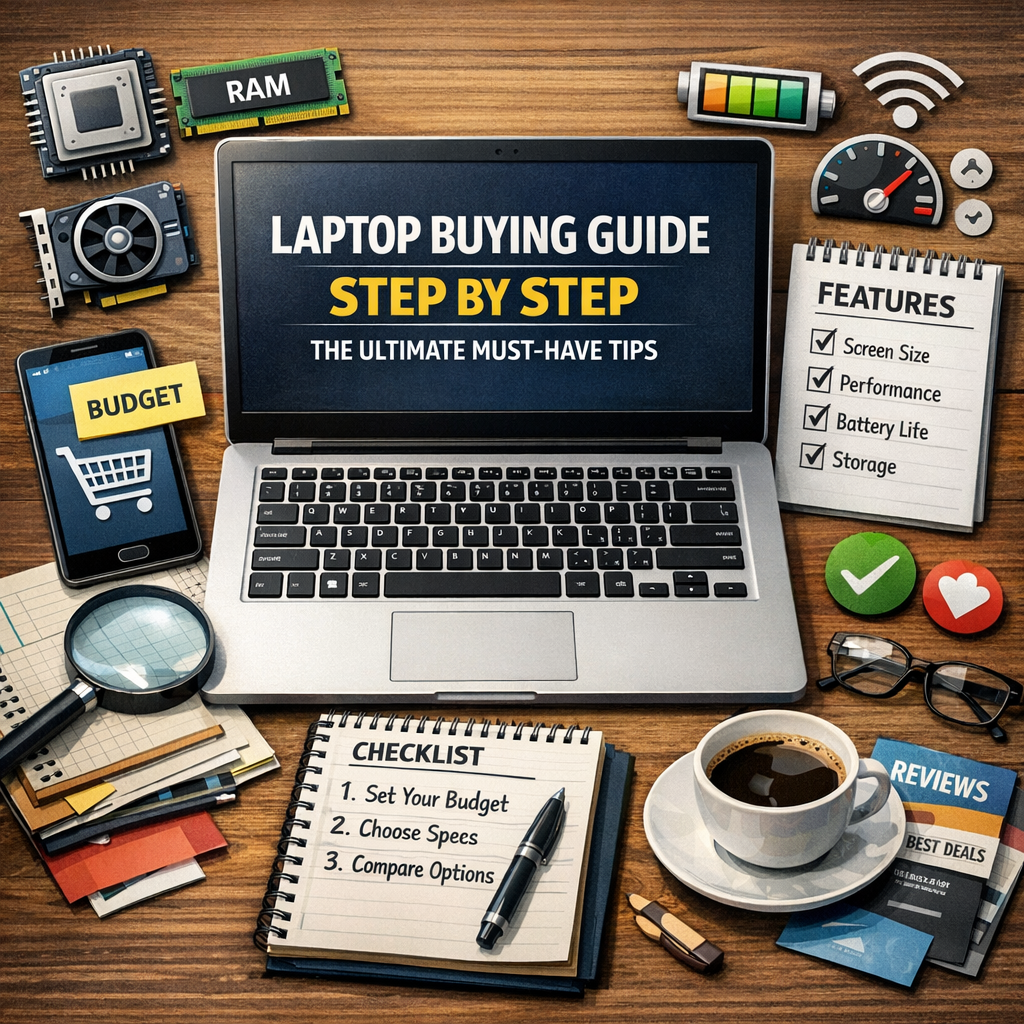
Laptop Buying Guide Step by Step: The Ultimate Must-Have Tips
Purchasing a laptop can be an overwhelming experience, especially with the vast array of options available today. Whether you’re a student, professional, gamer, or casual user, finding the right device requires careful consideration. This laptop buying guide step by step will walk you through the essential factors to consider before making your decision. By following these tips, you can ensure your investment meets your needs, budget, and preferences.
Step 1: Identify Your Primary Use Case
Before diving into specs and brands, ask yourself what you’ll primarily use the laptop for. This is the cornerstone of the decision-making process. Different tasks require different hardware configurations:
– Basic tasks: Web browsing, email, word processing
– Professional use: Graphic design, video editing, programming
– Gaming: Running the latest AAA titles at good frame rates
– Portability: Frequent travel or working on the go
Knowing your usage will help you prioritize features such as processing power, graphics capability, battery life, and screen quality.
Step 2: Set a Realistic Budget
Next, determine how much you are willing to spend. Laptop prices vary widely, from budget-friendly models under $500 to high-end machines exceeding $2,000. Set a budget range to narrow down options and prevent overspending.
– Under $600: Suitable for casual users and students.
– $600-$1,200: Ideal for professionals and moderate multitasking.
– Above $1,200: Best for gamers, creative professionals, and power users.
Remember, investing a bit more upfront often pays off in durability and performance.
Step 3: Evaluate the Processor Options
The processor is the “brain” of your laptop, affecting speed and responsiveness. Common processors come from Intel and AMD:
– Intel Core i3/i5/i7/i9: Increasing power and price correspond to the number.
– AMD Ryzen 3/5/7/9: AMD provides competitive alternatives, often at better price points.
For everyday tasks, an i3 or Ryzen 3 may suffice, but for multitasking and demanding software, consider at least an i5 or Ryzen 5. Gamers and professionals should aim for i7/i9 or Ryzen 7/9 series.
Step 4: Consider RAM and Storage Needs
RAM (Random Access Memory) impacts your laptop’s multitasking abilities. 8GB is generally the minimum recommended today; 16GB or more is preferable for heavy multitasking or design work.
Storage options include:
– HDD (Hard Drive Disk): Larger capacity, slower speed, usually cheaper.
– SSD (Solid State Drive): Faster boot and load times, more reliable, but pricier.
An SSD of at least 256GB is ideal for modern laptops, providing smooth and speedy performance. If you need more space, a combination of SSD and HDD or external storage solutions can work.
Step 5: Screen Size and Resolution Matter
The screen directly affects your viewing experience. Common sizes range from 11 to 17 inches:
– 13-14 inches: Portable and lightweight, good for daily tasks.
– 15-16 inches: A balance between size and usability.
– 17+ inches: Best for gaming or workstation use but less portable.
Resolution influences clarity; Full HD (1920×1080) is standard now, while 4K screens deliver sharper images but consume more battery.
Step 6: Check Battery Life and Portability
For users who travel frequently or work on the move, battery life is critical. Look for laptops offering at least 8 hours of usage on a single charge. Ultrabooks and lightweight laptops typically excel here.
Portability also depends on weight and build quality. Aluminum or magnesium alloy chassis are lighter and sturdier compared to plastic.
Step 7: Assess Connectivity and Ports
Make sure your laptop has the ports and connectivity options you need:
– USB Type-A and Type-C ports
– HDMI or DisplayPort for monitors
– SD card readers for photographers
– Headphone jack
– Wi-Fi 6 capability for faster wireless internet
Avoid relying solely on dongles or adapters unless you prefer ultra-thin laptops where ports are limited.
Step 8: Consider the Keyboard and Trackpad Comfort
An often-overlooked aspect is how comfortable the keyboard and trackpad feel, especially if you type long hours. Backlit keyboards help in low-light environments. Precision touchpads that support multitouch gestures enhance overall usability.
Testing the laptop in-store, if possible, can help you assess typing comfort and responsiveness.
Step 9: Research Brands and Warranty
Some laptop brands are known for better build quality, customer support, and warranty services. Popular choices include Dell, HP, Lenovo, Apple, ASUS, and Acer. Read reviews, user feedback, and verify warranty terms to avoid surprises later.
Extended warranties or accidental damage protection can be valuable additions, particularly if you intend to keep the laptop for several years.
Step 10: Final Tips Before Purchase
– Compare prices and look for sales or student discounts.
– Check for upgrade options, such as adding more RAM or swapping out storage.
– Consider the operating system: Windows, macOS, or Chrome OS, depending on your ecosystem preferences.
Conclusion
This laptop buying guide step by step helps demystify the process by focusing on key aspects such as intended use, budget, hardware specifications, and user comfort. By carefully evaluating these factors, you can confidently select a laptop that balances performance, portability, and price. Remember, the best laptop for one person might not be the best for another, so prioritize what matters most to you. Armed with this knowledge, your next laptop purchase will be a smart and satisfying one.